
Descripción
Kronolog records every install, update, activation, deactivation, and
deletion event for plugins and themes on your WordPress site. Events are stored with a UTC
timestamp and displayed in the site’s configured timezone.
Features:
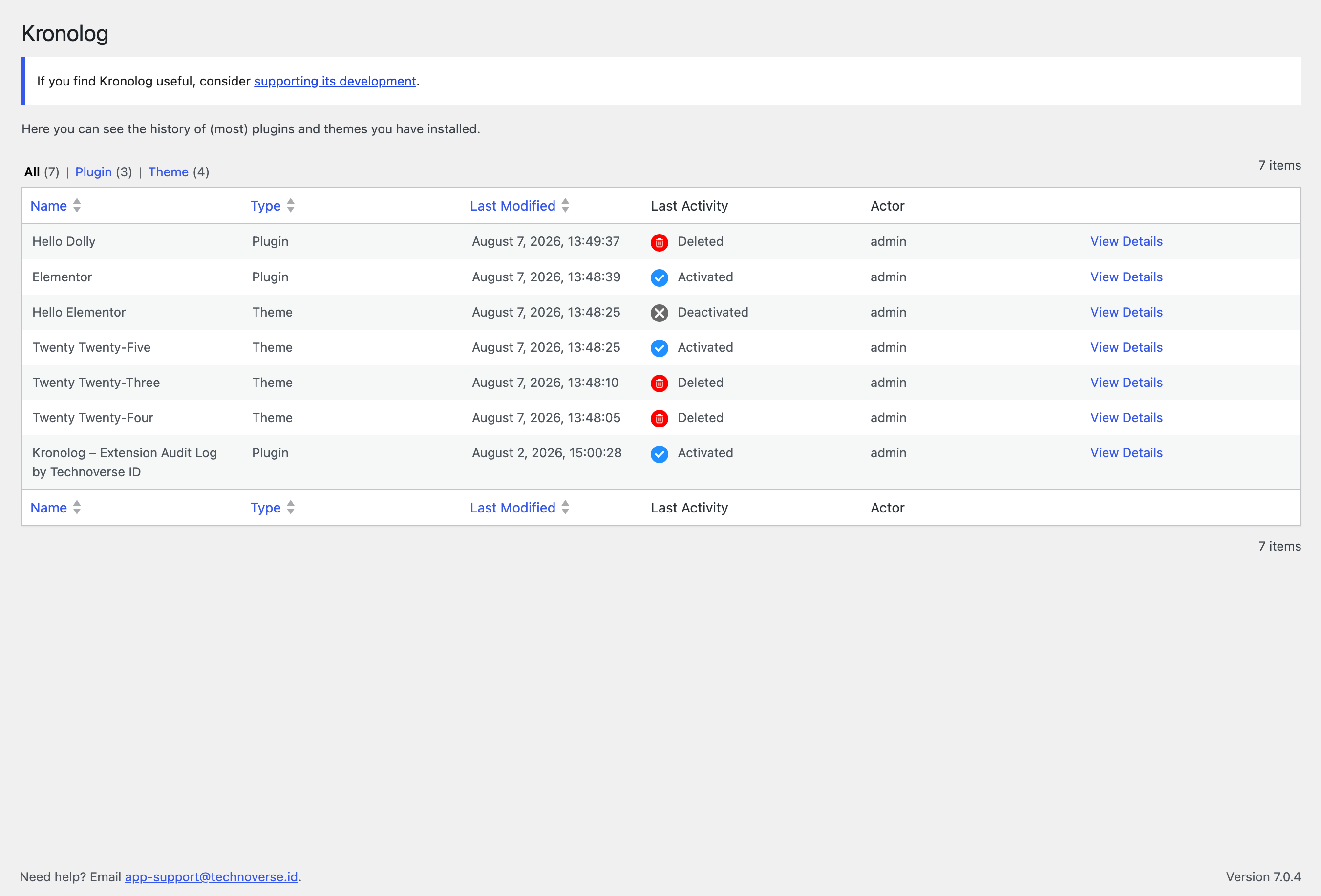
- Tracks installs, updates, activations, deactivations, and deletions — for both plugins and themes
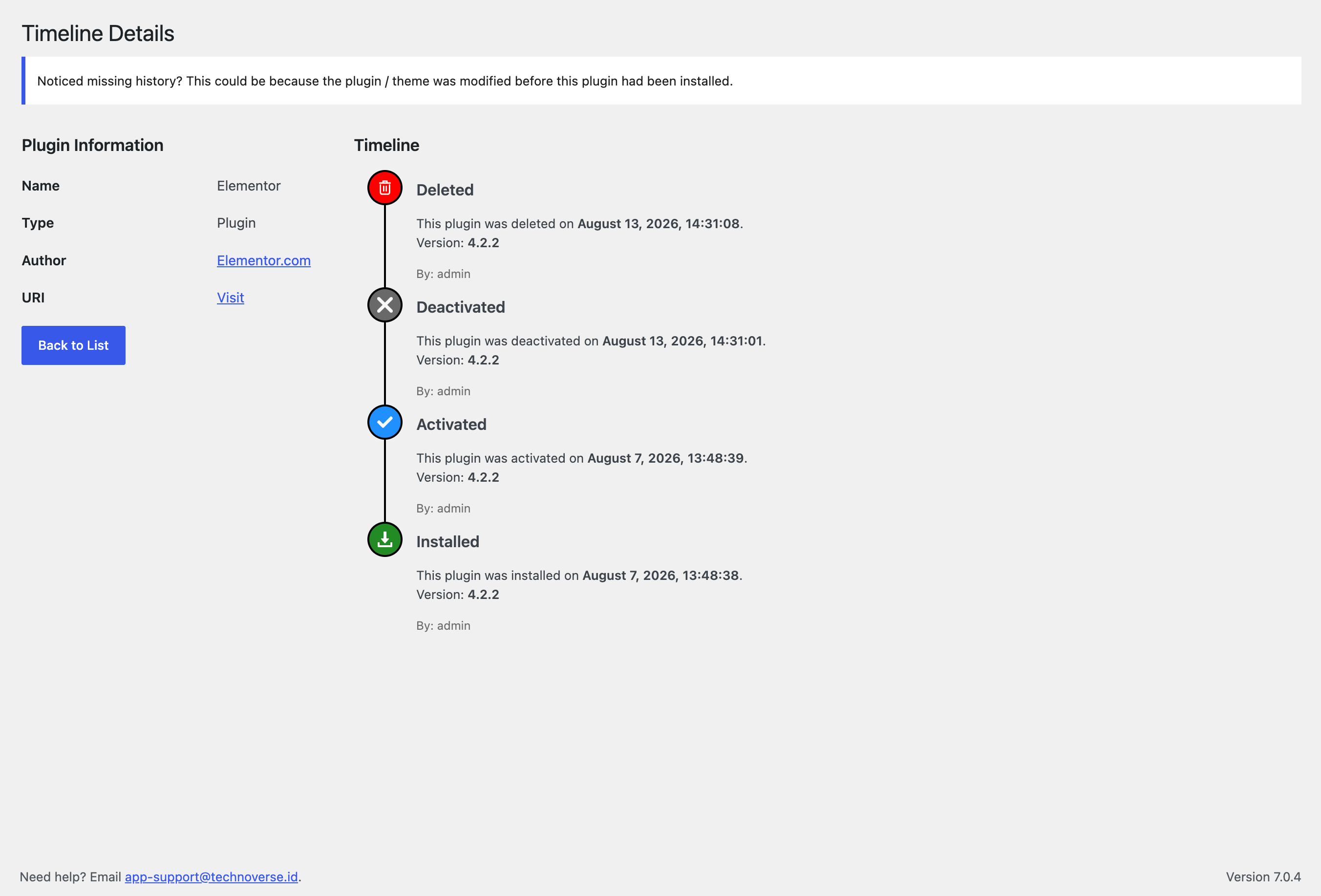
- Timeline detail view per package showing the full event history
- Admin list table with sorting and filtering by type (plugin/theme)
- «View History» quick link injected into the Plugins screen
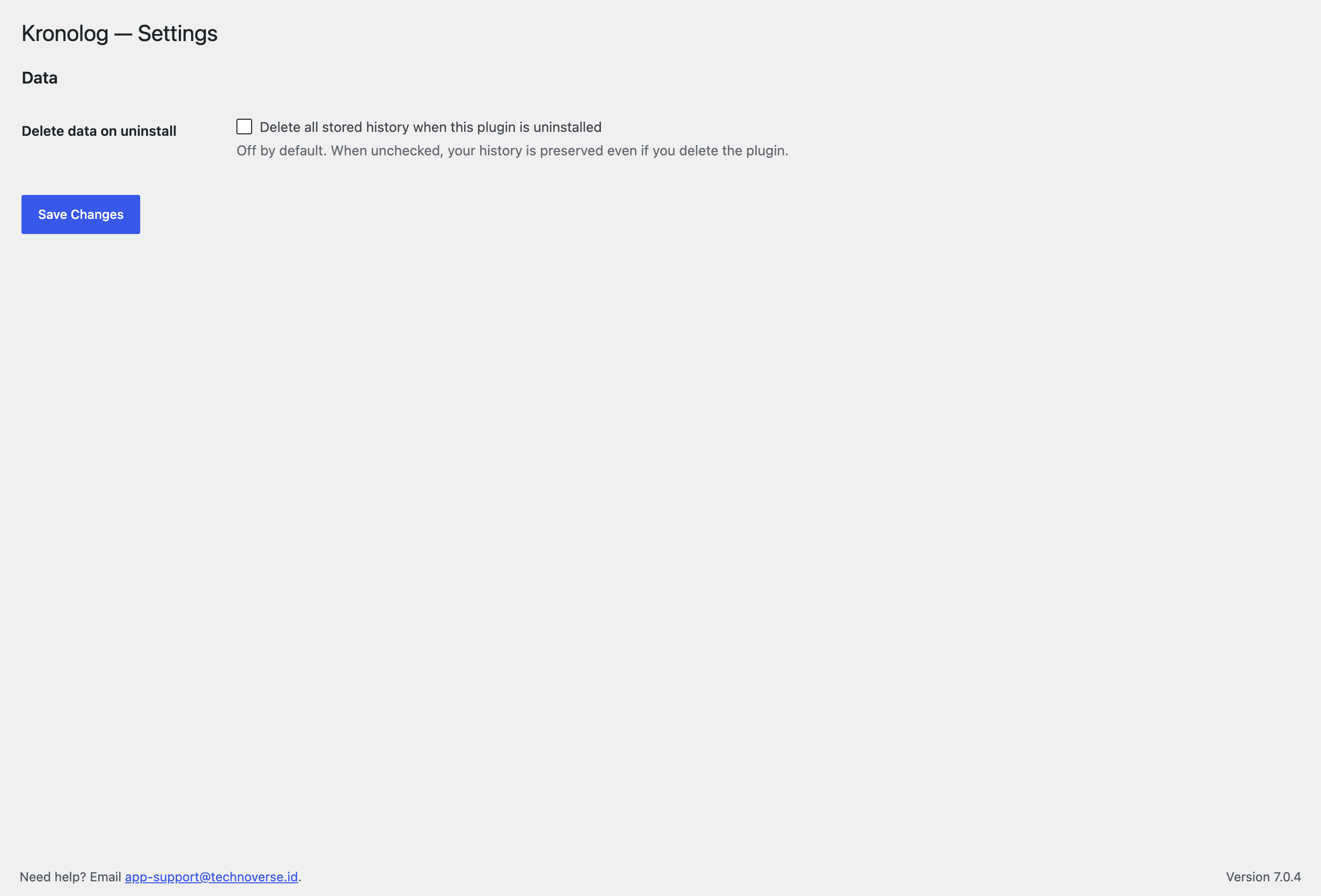
- Settings page: opt-in to delete all history data on plugin uninstall (off by default)
- All data stored in a dedicated database table; nothing is written to wp_options except one setting
Capturas
Instalación
- Upload the plugin folder to
/wp-content/plugins/. - Activate the plugin through the Plugins screen in WordPress.
- The history table is created automatically on activation.
- Visit Kronolog in the admin menu to view the log.
Note: History begins at the moment the plugin is activated. Events that occurred before activation are not captured.
FAQ
-
Does this plugin slow down my site?
-
No. It only runs in the WordPress admin during plugin/theme lifecycle events (install, update,
activate, deactivate, delete). It has no front-end footprint. -
What happens to my data if I deactivate the plugin?
-
Nothing — deactivation is intentionally non-destructive. Your history is preserved.
-
How do I delete all stored history?
-
Go to Kronolog Settings, enable «Delete all stored history when
this plugin is uninstalled», then delete the plugin from the Plugins screen. -
Where is the data stored?
-
In a dedicated table
{prefix}kronologin your WordPress database.
All timestamps are stored in UTC and displayed in the timezone configured under
Settings General. -
How do I get support?
-
Email app-support@technoverse.id and we’ll help you out.
-
Limitations
-
- History starts at activation — events that occurred before the plugin was installed are not captured.
- Multisite is not supported — on a multisite network, the history table is created only for the site where the plugin is activated, not network-wide. Network activation and per-site context are not tracked.
- Must-use plugins and drop-ins are not tracked — WordPress provides no lifecycle hooks for files placed in
mu-plugins/or as drop-ins, so these cannot be recorded.
Reseñas
No hay reseñas para este plugin.
Colaboradores y desarrolladores
«Kronolog – Extension Audit Log by Technoverse ID» es un software de código abierto. Las siguientes personas han colaborado con este plugin.
Colaboradores
Traduce «Kronolog – Extension Audit Log by Technoverse ID» a tu idioma.
¿Interesado en el desarrollo?
Revisa el código , echa un vistazo al repositorio SVN o suscríbete al registro de desarrollo por RSS.
Registro de cambios
1.5
- Internal maintenance release
1.4
- Maintenance release
- Added a «Last Activity» column to the history list table, showing the latest action (with a colour-coded icon) for each package
1.3
- Renamed the plugin to «Kronolog – Extension Audit Log by Technoverse ID» (slug
kronolog-extension-audit-log) to meet the WordPress.org directory’s naming rules (the previous name contained the disallowed word «Plugin»). - No data migration is required: the database table (
wp_kronolog) and stored options (kronolog_*) are unchanged by this rename.
1.2
- Renamed the plugin to «Kronolog – Plugin & Theme History by Technoverse ID» (slug
kronolog-plugin-theme-history) to meet the WordPress.org directory’s naming rules. - Existing history is migrated automatically on update/activation: the database table and stored options are carried over from the previous names (
install_history_log/plugin_theme_install_history) to the newkronolognames with no data loss.
1.1
- Renamed the plugin to «Install History Log» (slug
install-history-log) to meet the WordPress.org directory’s naming rules. - Existing history is migrated automatically on update/activation: the database table and stored options are carried over to the new names with no data loss.
1.0
- Initial release.