
Descripción
To get started, make sure to set your Turbo username in Settings > Turbo Button.
If you have not yet created an account, please visit Turbo for more information, and Turbo to register.
Plugin features and usage instructions:
-
Shortcode: In the WordPress visual editor, enter «[turbo $price]» in the location you would like to insert a payment link. The $price should be a valid dollar amount like $1.00. So to create a payment link for $1.00 use [turbo 1.00]. Save the post, and view the page in WordPress. The payment link will now redirect to your Turbo account’s landing page for checkout.
-
Gutenberg block: In the WordPress visual editor, enter /turbo, then select the Turbo Button block. Enter the price for the link you would like to create. Save the post, and view the page in WordPress. The payment link will now redirect to your Turbo account’s landing page for checkout.
Capturas

Shortcode usage to enter a payment button for $12.34. 
How the shortcode button looks after publishing. 
Gutenberg block usage to select the Turbo Button plugin. 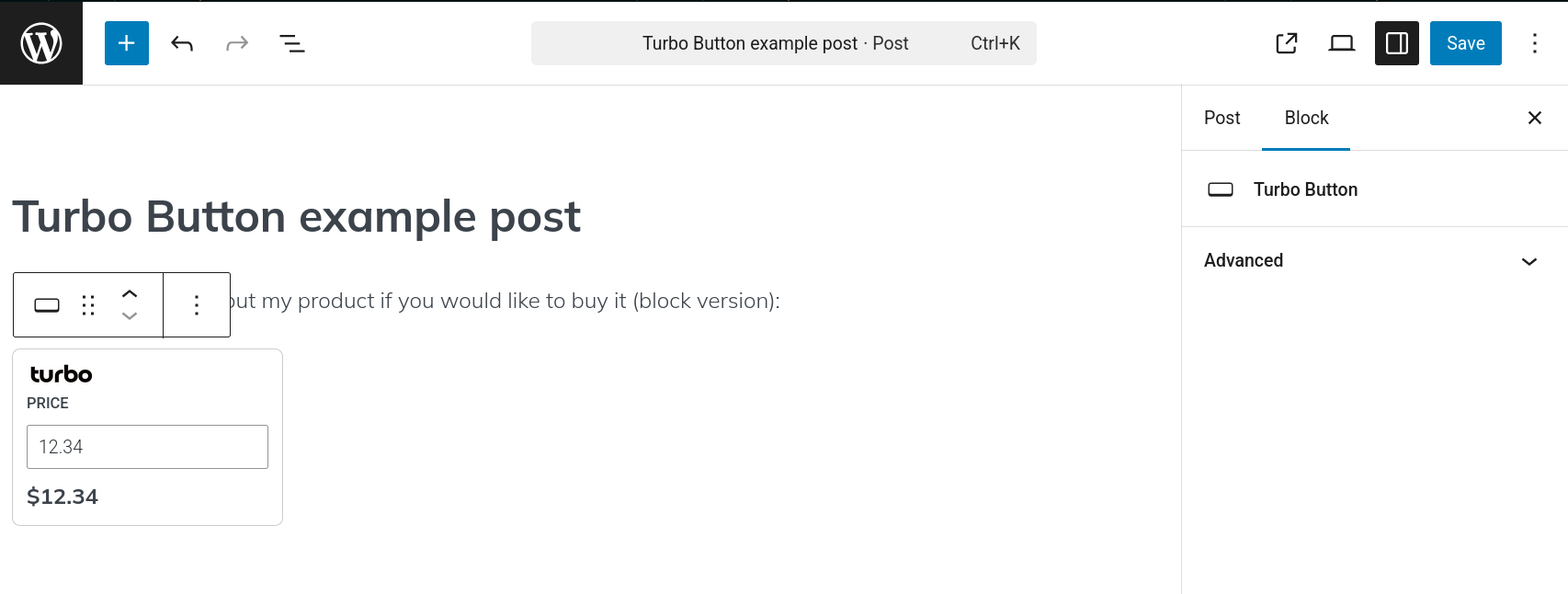
Enter a price in the block to create the element. 
The formatted price will now be displayed. 
How the Gutenberg block button looks after publishing.
FAQ
-
How do I use this plugin?
-
Please see the usage instructions in readme.txt. The shortcode format is [turbo $price], where $price is any valid dollar amount like $1.00. Or enter /turbo, to select the Turbo Button block. Both of these formats can be used in the WordPress visual editor to quickly insert a payment link.
Reseñas
No hay reseñas para este plugin.
Colaboradores y desarrolladores
«Turbo Button» es un software de código abierto. Las siguientes personas han colaborado con este plugin.
Colaboradores
Traduce «Turbo Button» a tu idioma.
¿Interesado en el desarrollo?
Revisa el código , echa un vistazo al repositorio SVN o suscríbete al registro de desarrollo por RSS.
Registro de cambios
1.0
- Plugin supports both shortcode and Gutenberg block style payment link creation.